Getting Started
To join the server, use the address teamonster.net in the multiplayer section of the in-game main menu.
You'll first land at the spawn point. Feel free to read some of the signs first. You will not be able to break and place blocks inside the spawn area, so pick a random direction and start the journey. You can always get back to spawn point by running a command /spawn
You can also use /res rt which will teleport you to a random spot within a 1000 blocks near the spawn and make your first steps a bit quicker.
It is advisable to also run a command /kit tools which will give you some starting gear and food, to make these first steps easier.
You may access some of the information listed here ingame by running /teamonster and read through.
The rest is up to you to play however you wish. Good luck!
Keep reading for more information.
Server Rules
There are not many rules, apart from the common sense ones. I think we can summarize them like so:
- Be respectful and nice to other players - no hate speech
- PVP is allowed - please protect your land with Residence if you wish to keep it
- No hacking - I don't care if you use a heavily modded "hacked" client, just don't cause damage to the server and others.
- No lag machines - Do not intentionally try and cause lag
- Build something cool
Economy
We use our own custom economy plugin which allows you to trade in-game items with a virtual currency ₸c (Teamonster coins, or Tea coins - whatever you want to call it).
₸c is also used to buy a piece of land (Residence), so selling some items and earning money may be crucial.
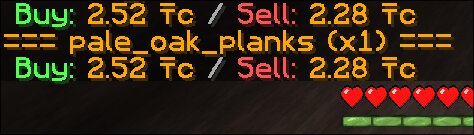
You can check the price of an item by running the /price command.
For a full list of commands check the Commands section down below.
How prices change
As you trade items, you'll also notice that prices fluctuate. This is by design. The plugin will adjust the pricing for each item depending on the supply and demand of the market. For instance, if you buy 1000 units of STONE, the price of stone will spike up and become more expensive. This change is not linear but rather diminishing, which means if you buy another 1000 units of STONE then the price will not go up as much. This is also by design, to prevent unrealistic price spikes, and gives you a bit of a "bulk discount" as a bonus.
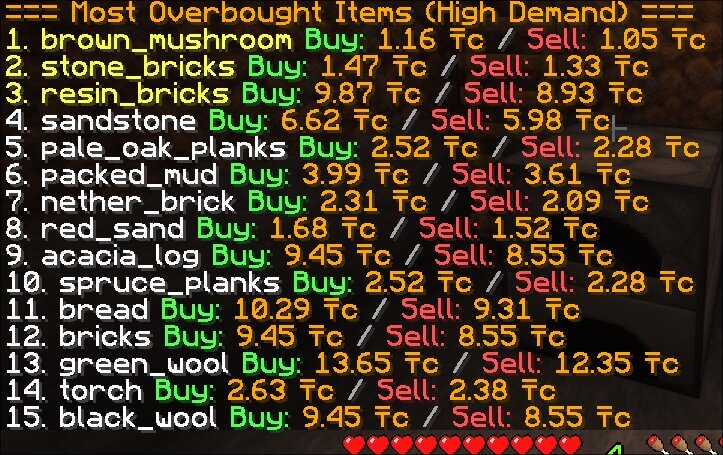
When the price is high, it means the item is overbought. This is a good opportunity for other players to sell their items and make a bit more profit. Same goes for oversold items.
You can check overbought and oversold items by running /overbought and /oversold to spot potential trade opportunities.
If an item is overbought or oversold, and no one is counter-trading, then the system will slowly adjust the base price to compensate for the change in trend. In simple terms, if an item is overbought, it'll slowly become less overbought while still costing the same - even if no one is trading against it. This mechanism helps to keep the economy in balance.
Don't overthink it
If this seems confusing, don't worry! All you have to know is that the prices change depending on the supply and demand, mimicking how economy would work in real life.
If you need to buy or sell things, do it. But also do not forget to check the current prices with /shop or on this website from time to time, and not miss out on a potential opportunity.
Use signs to trade
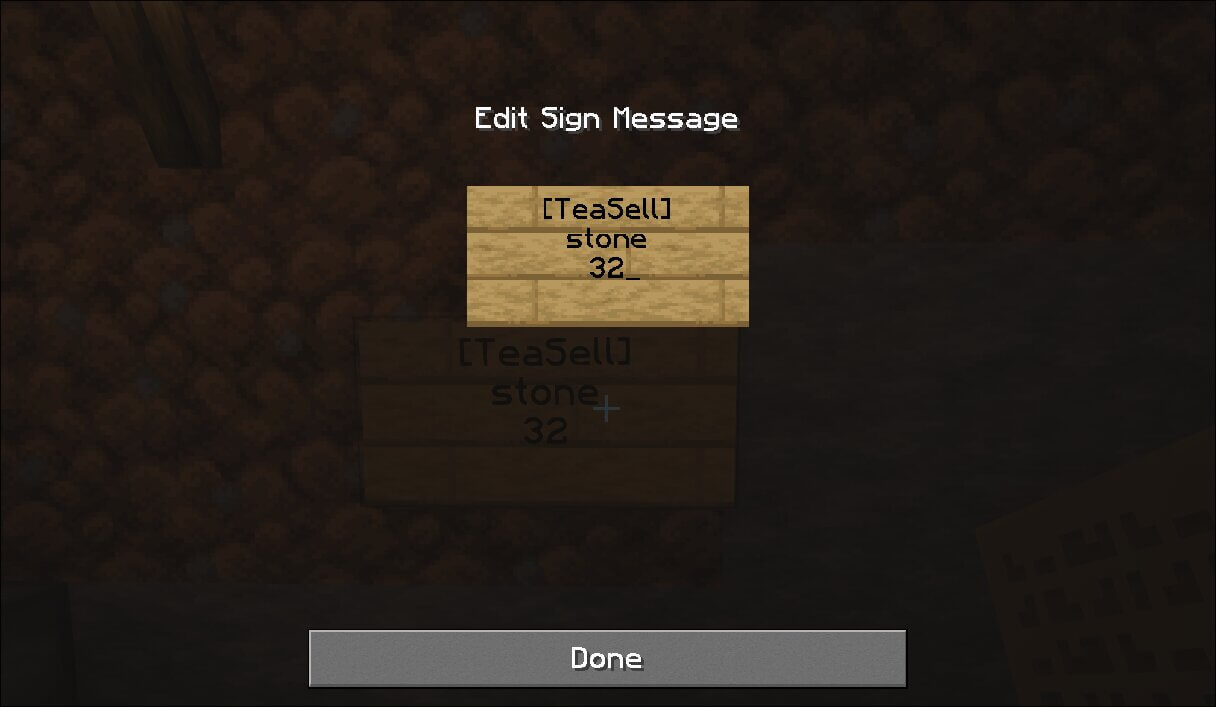
If you find yourself trading a specific item often, and do not wish to type commands all the time, you can use custom signs for that! Here's how:
- Place a sign somewhere
- Type
[TeaBuy]or[TeaSell]on the first line - Type an item ID on the second line, e.g.
oak_log - Add an amount you wish to buy/sell on the third line, e.g.
64
Here's an example of final result:[TeaBuy]
oak_log
64
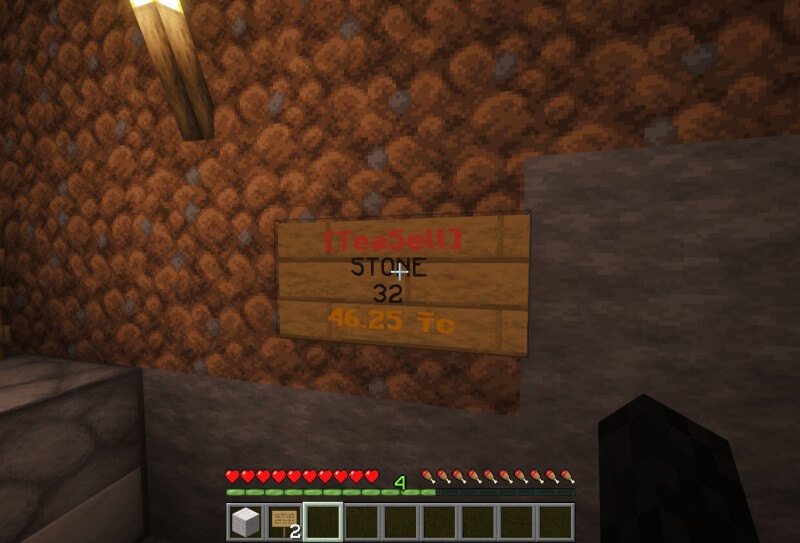
If you've done it correctly, the sign will let you know by changing its color. You can right-click it to execute the trade.
The sign will also show you a price for that amount of items on the fourth line. That way you can also use the sign to check the current price. Please keep in mind that you'll need to manually update the price by left-clicking it. The price won't change automatically - this was an optimization decision to avoid excessive updates.
You can remove the sign by crouching and punching it - holding Shift and pressing left-click.
The item I want to trade is not in the shop!
The idea is to not have all the items in the shop. That way we're not discouraging free exploration and survival aspects of the game. If you wish an item was available in the shop let me know by ingame mail using /mail send djtimson <your message> and I may consider adding it.
Skills
As you play, you'll quickly notice that your character can gain additional experience in regards to specific skills. For instance, chopping down a tree will grant you Foraging experience.
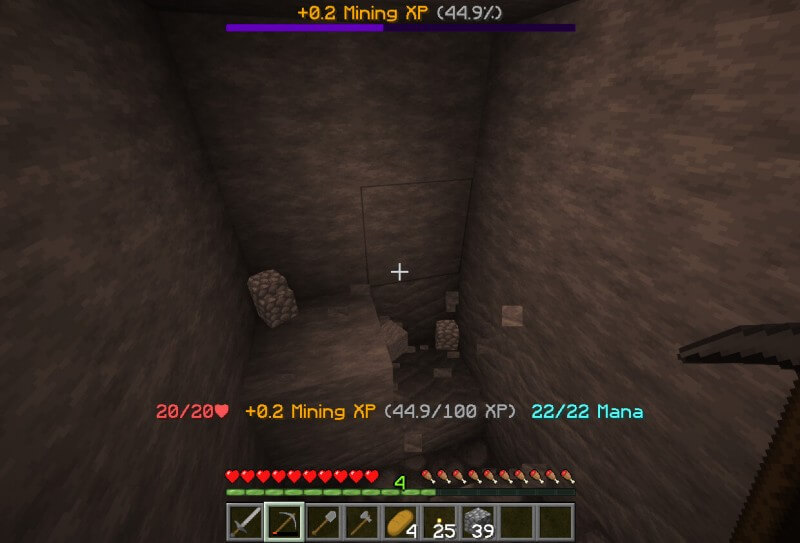
There are quite a few different skills in which your character will become better with. Here's a quick list:
- Farming
- Foraging
- Mining
- Fishing
- Excavation
- Archery
- Defense
- Fighting
- Agility
- Enchanting
- Alchemy
As you level up these skills, you'll be unlocking certain abilities. I will not spoil everything here, so go in and find out for yourself what they are.
You can use a command /skills which opens a nice GUI menu for you to click through. You'll find information about your character skills, abilities, levelling progress, and even some information on how you can level each skill.
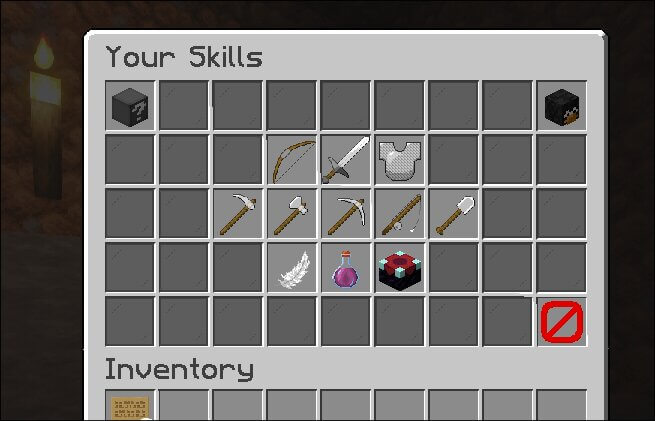
All available commands regarding skills are listed down below in the Commands section.
Area Protection - Residence
Claim and protect your land from griefers! With Residence, you can control who can build, manage permissions, and expand your territory as needed.
How to claim land
Follow these steps to create your residence:
- Get a wooden hoe

- Left-click and right-click on two diagonal corners of the area you want to claim. This selects a rectangular area.
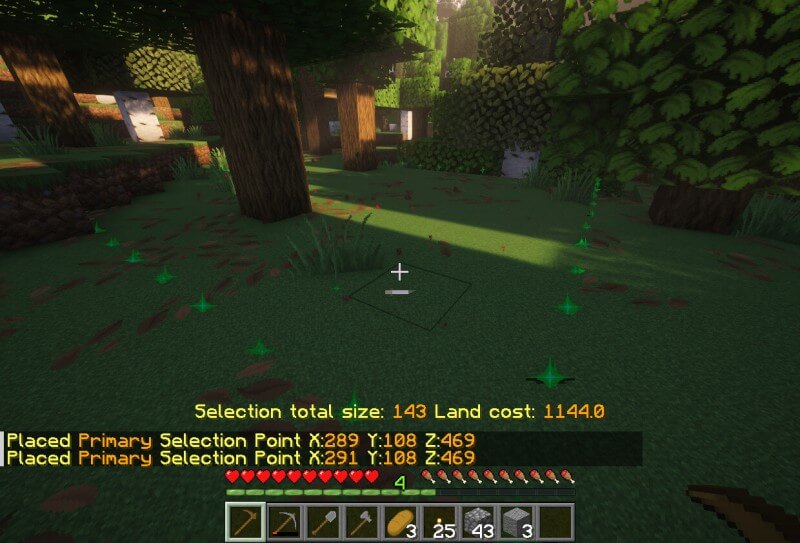
- Select full height by running
/res select vert. Vertical blocks cost nothing, so always do this! - Check the cost before buying with
/res select cost. You can also use/moneyto check your balance and/res limitsto check residence limits. - Create the residence with
/res create <name>, e.g./res create MyHome
Managing your residence
Once created, you can manage your residence with these commands:
/res set- open permissions GUI menu to control what's allowed in your residence
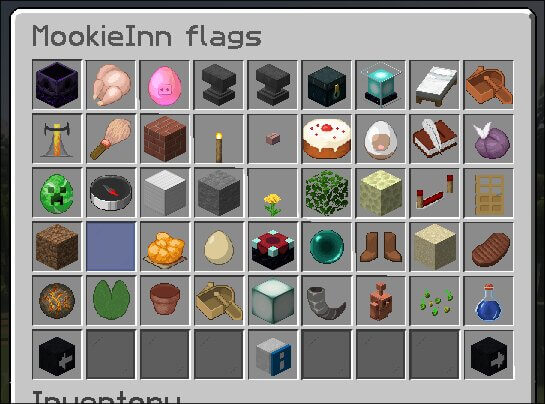
/res tpset- set a teleport point for your residence/res tp <name>- teleport to your residence/res info- view information about the residence you're standing in/res list- list all your residences
Resizing your land
You can expand or shrink your residence after creation:
/res expand <amount>- expand in the direction you're looking (charges you instantly!)/res contract <amount>- shrink in the direction you're looking (refunds 50% of the cost)
Be careful, these commands charge/refund you immediately!
Adding players to your residence
You can give specific permissions to other players with /res pset <player> <permission> true
For example, /res pset djtimson build true allows djtimson to build in your residence.
For full trust, use the shorthand: /res pset <player> trusted true
Common permission flags include: build, use, container, tp, admin
For a complete list of residence commands, see the Commands section below.
Various gameplay features
Custom crafting recipes and items
Inventory Insurance paper
This "insurance" paper will ensure that you keep your inventory upon death. The item is gone when you die, but you keep everything else. This will not protect you from XP loss. 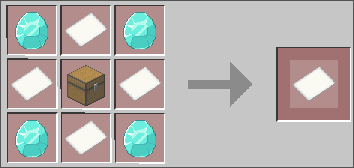
Portable crafting table
A crafting table that does not need to be placed down to use. Right-click to open it.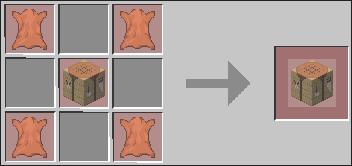
Derp stick
Find out what it is for yourself.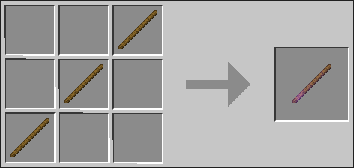
Fill empty glass bottles with XP
With an empty glass bottle in hand, right-click on nothing (air) to fill a glass bottle with.
Mining money?
You have a small chance of finding ₸c when mining various rock types.
Smart automatic chest sorting
You can place signs on chests with item IDs surrounded by [], for example [baked_potato]. This will automatically create a sortable chest. You can specify up to 4 item IDs per sign, one item ID per line. When you put items inside, they will be automatically sorted to the correct chest. You should also specify a "catch-all" chest by setting a specific chest to [any]. Items that do not have a designated chest will be sorted to "[any]".
You can also specify wildcards, for instance if you put [*_pickaxe] it will match all pickaxe types (e.g. diamond_pickaxe, stone_pickaxe, copper_pickaxe). Another good example is to use [*log] and [*planks], which will match all log wood types and planks.
Items from hoppers will also get sorted out.
IMPORTANT: Chest sorting only works for chests that are no more than 10 blocks away from each other. For example, if a chest with the correct item ID is 11 blocks away from the chest you're interacting with, it will not work.
See it in action here:
Distant horizons support
I like Distant horizons mod. It allows you to see much farther than otherwise possible. The server supports it. All you have to do is install the mod, and in time, you'll start seeing much farther away. And the best thing is, after you come back, your client will remember the map and will render it for you without downloading it again from the server.
Without the mod: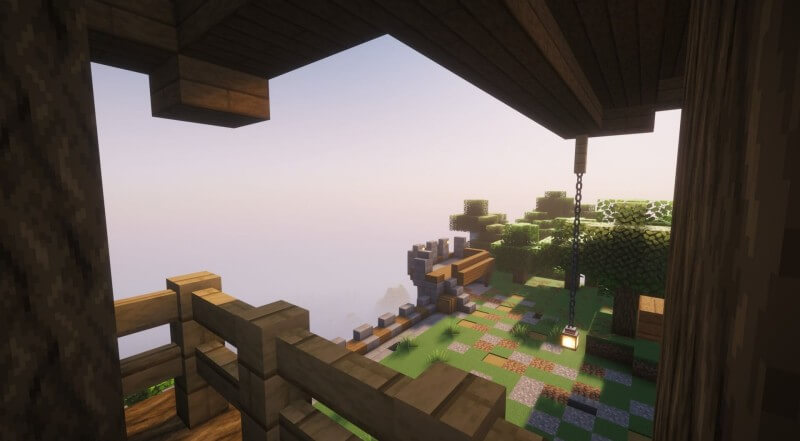 With the mod:
Installing the mod is easy if you use a launcher like Prism Launcher or Modrinth.
Live Map
A live world map is available on the Live Map page if you are logged in.
Voice Chat
The server supports Simple Voice Chat, allowing you to talk to other players using your microphone. When you're not in a group, proximity chat is enabled which means only nearby players can hear you. If you join a group, you can talk to all group members regardless of distance.
Voice chat commands
/voicechat invite <PLAYERNAME>- Invites the player to the group you are in/voicechat join <GROUP-NAME>- Connects you to the group with that name/voicechat leave- Disconnects you from your current group
Commands
Here's a list of all commands that might prove useful to know.
Basic commands
/teamonster- Open server's information menu (similar info to this page)/kit tools- Get a starting kit of tools (30min cooldown)/list- Show all online players/auth- generate a one-time login code for the website login/me <message>- Print out a message in third person (e.g. djtimson is building something cool)/msg <player> <message>- Send a private message to another player/mail send <player> <message>- send a mail to another player (useful for messaging an offline player)/mail read- read your mails/mail clear- clear out your mails/sit- toggle sitting on and off on any block/lay- toggle laying down on and off/crawl- toggle crawling on and off/bellyflop- toggle bellyflop on and off/plugins- List all server plugins/version- Show server version information
Teleportation commands
/spawn- teleport to spawn point/sethome- set your home teleport location/home- teleport to home location/tpa <player>- request a teleport to another player/tpahere <player>- request another player to teleport to you/tpaccept- accept a teleport request/tpacancel- cancel a teleport request/res rt- teleport to a random spot within 1000 blocks near spawn (useful for avoiding having to walk out from spawn)/res tp <residence_name>- teleport to a residence/warp- list all available warps/warp <warp_name>- teleport to a specific warp
Economy / Item shop
/money- shows your money balance/moneytop- shows richest players/pay <player> <amount>- send/pay money to another player/shopor/priceall- lists all items in shop - alphabetically/shop <search item>or/priceall <search item>- print prices for all search result, e.g. /shop wool prints all tradable wool items/price- lists price for item in hand, can use/price <amount>to show for a specific amount/price <item_id> [amount]- lists price for item id, amount optional/buy <amount>- buy amount of items for item in hand/buy <item_id> [amount]- buy item, amount optional/sell <amount>- sell amount of items for item in hand/sell <item_id> [amount]- sell item, amount optional/sellall- sell all items from inventory of item in hand/sellall <item_id>- sell all items from inventory of item_id/pricetop- lists most expensive items/pricebottom- lists cheapest items/overbought- lists items that have been bought the most recently/oversold- lists items that have been sold the most recently
Skill commands
/skills- opens up skills gui/stats- opens up stats menu - can be navigated from/skillsmenu too/[skill_name]- opens up level progression menu for a skill - can be navigated from/skillsmenu too/abtoggleor/sk toggle- toggles the action bar - where health and mana are displayed/skilltopor/sk top- top skilled players/skilltop <skill>or/sk top <skill>- top skilled players for a specific skill/skillrankor/sk rank- shows your skill rankings
Area protection - Residence commands
/res select <x y z>- select an area around you for specified distance (easier if you use wood axe)/res select expand <amount>- expand residence selection by x amount in a direction you're looking at/res select vert- expand residence selection by full height (do this since height is free to add)/res select cost- find out the cost of your selection before creating a residence/res create <residence_name>- create a residence with the specified name/res padd <player>- add player to residence/res pdel <player>- remove player from residence/res set- open residence permissions gui menu - you can also do/res set [permission] [true/false/remove]to make a change for a specific permission flag/res pset <player>- open residence permissions gui menu for a specific player - you can also do/res pset [player] [permission] [true/false/remove]/res default <residence_name>- restore residence permissions back to default/res expand <amount>- expand residence in the direction you're looking at - will charge you in-game money for the new area you've expanded into/res contract <amount>- contract residence to the direction you're looking at - will give you back 50% of the cost of in-game money/res tpset- set residence teleport location/res tp- teleport to residence/res unstuck- teleports you outside the residence/res rename <old_name> <new_name>- rename residence/res list- list all your residences/res listall- list all residences/res limits- list all important limitations/res rc- turn on residence chat channel/res give <residence_name>- give residence to another player/res remove <residence_name>- remove a residence